The transaction details drop-down
Everything you can do with one transaction: split, receipt, notes, contact, transfer, review.
Where it is in the app
Entity → Transactions → click any transaction row.
How it works
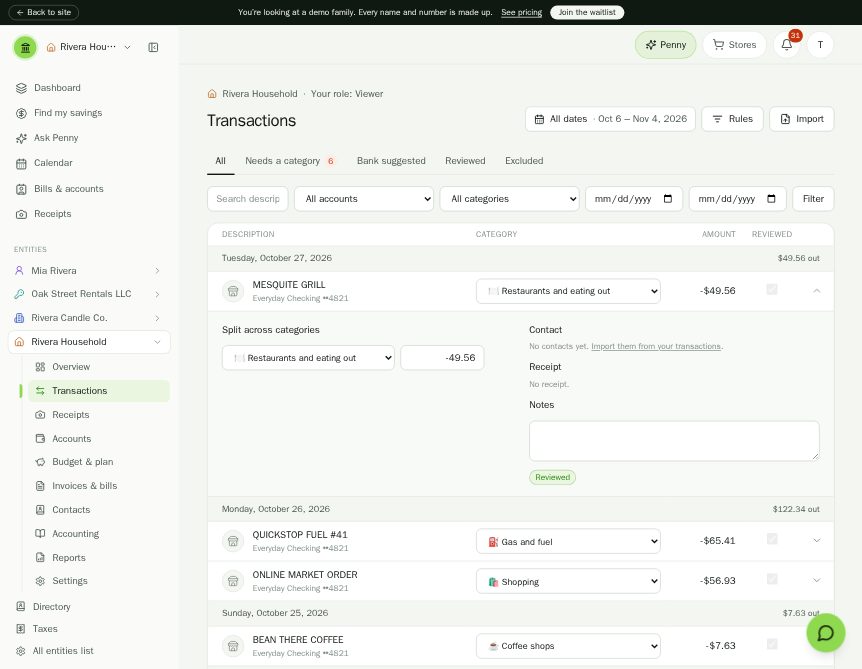
- 1If a store order came in with it (Amazon, Apple, Target or Walmart), its items show first, each with its own category.
- 2Under Category: + Add sub-category, + Split across categories to divide one charge (say a Target run) into groceries, household and clothes, and + Make a rule so every transaction like it gets the same category (it says Edit rule when a rule already handles it).
- 3Receipt: see the attached receipt, or open it full size.
- 4Note: type anything you want to remember; Save note appears once you change it. Contact: attach the customer or vendor. Property: for rentals, which property it belongs to.
- 5Link as transfer: tie two sides of a move between your own accounts so it doesn’t count as spending. “Not a transfer” undoes it.
- 6Along the bottom: Flag for review, and “Exclude (duplicate or not real)”, which hides it from every total (“Include again” brings it back). Save (or the green Reviewed check) is on the row itself.
- 7Picking a category fills it in, but the transaction stays waiting for review until you save. A box opens right under it: “Save all” puts every transaction containing the same words in that category too (and, if you leave “Always do this for new ones” on, future ones), or tap “Save just this one”. The same box has “Add a sub-category under …” to make a more specific one (like Meta ads under Advertising) and use it right away.
- 8Tabs across the top: All, Not reviewed (everything still waiting, both kinds), Needs a category, Bank suggested, Reviewed and Excluded. Every transaction not reviewed yet has a Save button on its row: tap it when the category is right and it turns into a green check (Reviewed). Tap the green check to undo. Saving one row never pauses the others.
- 9Need a new category or sub-category (like Meta ads under Advertising)? Pick “+ New category or sub-category…” in the category list, or tap + Add sub-category in the open transaction. The form opens inside that transaction.
Want this for your family?
Hold my spot, free