Connecting bank, card and loan accounts
Link your bank so transactions and balances come in on their own.
Where it is in the app
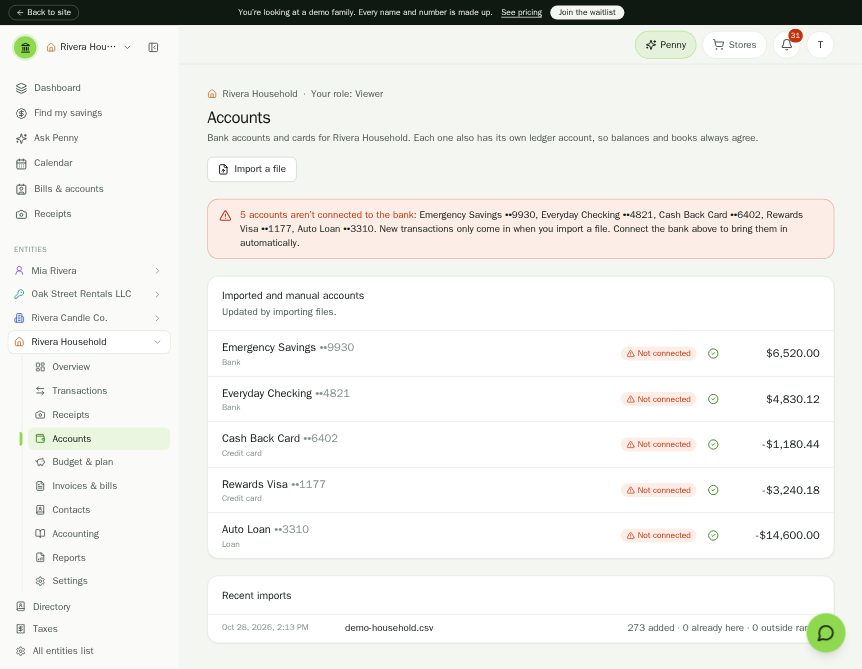
Sidebar → click an entity → Accounts → Connect a bank.
How it works
- 1Open the entity the account belongs to, go to Accounts and click Connect a bank.
- 2Find your bank, sign in through the secure bank window and pick the accounts to share.
- 3Back here, choose which accounts to import. History and balances start coming in within a few minutes.
- 4If a connection needs attention, a small red dot shows next to the entity’s name and its Accounts in the sidebar, and Accounts shows a Reconnect button. A small green dot means that entity’s banks are all connected.
- 5No connection for your bank? Use “Add an account by hand” and import statement files.
- 6Further down, the Store connections card shows Amazon, Apple, Target and Walmart: orders for this entity, cards the stores know, and Manage to set them up.
Want this for your family?
Hold my spot, free